Running uTorrent under wine works pretty well in Linux. One problem with installing under wine is that file associations are not set correctly. This means that double-clicking a .torrent file or opening a .torrent link in your browser won’t automatically start uTorrent. Here’s how to solve that.
First, create a file called utorrent with the following content:
#!/bin/sh

if [ "$1" ]; then
    torrent_file="Z:`echo $1 | sed 's/\//\\\/g'`"
    env WINEPREFIX="/home/avery/.wine" wine \
        "C:\\Program Files\\uTorrent\\uTorrent.exe" "$torrent_file"
else
    env WINEPREFIX="/home/avery/.wine" wine \
        "C:\\Program Files\\uTorrent\\uTorrent.exe"
fi
Replace /home/avery with the path to your home directory. Make sure to make the file executable:
$ chmod +x utorrent
This is the main script that we’ll start uTorrent with. Basically, if given a file path on the command line, it will transform it from a linux path to a wine path. /tmp/sample.torrent will become Z:\tmp\sample.torrent. The sed bit comes from an Ubuntu forums thread.
Next, we need to fix the .desktop file. It should be located at ~/.local/share/applications/wine/µTorrent.desktop and contain something like:
[Desktop Entry]
Name=µTorrent
Exec=env WINEPREFIX="/home/avery/.wine" wine \
    "C:\\Program Files\\uTorrent\\uTorrent.exe"
Type=Application
StartupWMClass=Wine
Icon=6948_utorrent.0
Add the following two lines to the end of the file:
Categories=Network;FileTransfer;P2P
MimeType=application/x-bittorrent
The first line makes uTorrent show up correctly in the GNOME menu system. The next associates uTorrent with the BitTorrent MIME type. Also, change the Exec line to:
Exec=/home/avery/bin/utorrent %f
Obviously, replace the path with wherever you put the utorrent script from above. The .desktop file should now contain:
[Desktop Entry]
Name=µTorrent
Exec=/home/avery/bin/utorrent %f
Type=Application
StartupWMClass=Wine
Icon=6948_utorrent.0
Categories=Network;FileTransfer;P2P
MimeType=application/x-bittorrent
To make uTorrent the default BitTorrent client, edit ~/.local/share/applications/defaults.list:
[Default Applications]
application/x-bittorrent=µTorrent.desktop
This file might already exist, in which case you can just add the second line. Finally, we need to update GNOME’s file associations database:
$ update-desktop-database ~/.local/share/applications
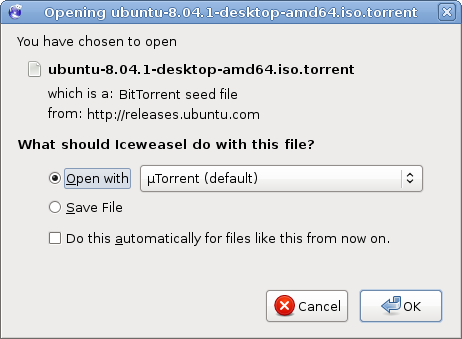
Success:
17 replies on “Fixing uTorrent File Associations in Linux”
Thank’s, awesome guide. This had been the only thing stopping me from using uTorrent.
Thanks so much! This works perfectly – and explained extremely well to make it very easy.
Thanks for the guide! But somehow this didn’t work for me. µTorrent is the deafault app, but gives error that the path is wrong, and I’m pretty sure that it’s because the script that changes the paths is not run, because when I edit µTorrent.desktop: Excec=/home/myusername/.. and put in a nonexisting file, I don’t get any error messages and µTorrent opens. Any ideas? I’m using µTorrent 1.8.2 on ubuntu 8.10
Sorry, I just got it to work :( The problem was that Open With: had ubuntu.exe instead of ubuntu(default).
I got it to work, but with minor tweaking, I changed this line:
Exec=/home/avery/bin/utorrent %f
to:
Exec=/home/avery/utorrent %f
and then changed the avery to my username
Thanks for the help, all the other places I found just wanted me to use a native linux app, NONE OF WHICH worked as well, I never even tried Azaureus since it’s a resource hog.
Awesome guide! Thanks!
Tip: Using global var $HOME on script “utorrent” make it generic, no need for change home path: “${HOME}/.wine”
Just so you know, some quirky things can happen with Ubuntu & WINE. I had to right click on the utorrent script file because of the missing sh extension & tell it to open it with it with bash because it was trying to load the script itself in wine & it’s other open with suggestions were text editors… So I had to use a custom command (bash) to get it to load the script correctly… Just something to watch out for…
Did you have #!/bin/sh at the top? That’s what should make it run with sh.
thanks man
great guide
Awsome guide. Rewrote this into norwegian here:
http://hekta.org/~chriswil/blog/index.php/blog/show/Guide%3A-%C2%B5Torrent-som-standard-torrent-behandler.html
Worked like a charm
Thanks a lot for the guide. I was halfway through writing a custom script to do the same job, but this a much nicer fix after I got this working. For those of you who’re having problems:
1. make sure the directory name for where you put your uTorrent.exe file is correct. (i.e. /home/doctorme/Desktop/uTorrent/uTorrent.exe)
2. make sure that your launcher goes to the right place. (right click on the launcher, hit “Properties”, right next to where it says command hit the “Browse” button. Now browse down to the .exe file for uTorrent)
3. You may open up that shell script file and replace the line that says env WINEPREFIX=”/home/avery/.wine” wine \
“C:\\Program Files\\uTorrent\\uTorrent.exe”
with something more like: wine /home/doctorme/Desktop/uTorrent/utorrent
or whatever your path happens to be
4. check your “~/.wine/drive_c/Program Files” directory for a file named uTorrent. If there’s nothing there then you probably didn’t “install” uTorrent to the “C:” drive when you ran it for the first time. An easy fix is to make a symbolic link to where uTorrent.exe or the utrorrent launcher script is. For example:
cd ~/.wine/drive_c/Program\ Files
ln uTorrent ~/Desktop/uTorrent/utorrent
Tangential question:
I just noticed that in the code boxes, in some places you actually have the greek “micro” symbol and not just a “u”. I checked with a hex editor and this is apparently a two-byte code: C2 B5 (hex).
I did the whole thing cut & paste with no problem. And now notice that gnome file browser and gedit both have no problem displaying the greek letter. The linux filesystem obviously has no problem with it in filenames.
But I am curious: how do you enter these manually in the first place?
Copy and paste :)
I posted this in ubuntu forum that links here… but figure this is a good place to ask same:
I followed these instructions successfully several months ago — main reason was to make uTorrent the default torrent app in firefox. It worked great (although I may have had to do some other steps that I now do not recall — I really should write these things down!). That was with FireFox 3.0.13.
Unfortunately it is now broken with the new FireFox 3.5.
Either FireFox 3.5 has failed to import something from 3.0.13, or it is failing to read the Gnome mimetypes in the same way.
I cannot remember if I had to do anything extra to make Firefox find the app or recognize it as a default.
One small thing I did have to do differently from btmorex’ instructions was to edit (or create?) the file: ~/.local/share/applications/mimeapps.list instead of ~/.local/share/applications/defaults.list. (maybe this has something to do with the version of ubuntu — I’m currently using 9.04 and I believe I was running 8.1 when I first did this — in both cases it was “mimeapps.list” not “defaults.list”, and it worked).
Anyone have any thoughts about what I need to do to make FireFox 3.5 see uTorrent as an app for bittorrent, other than the above excellen instructions?
Thanks!
Only guess I have is to rerun update-desktop-database
Thx!
Yet another grateful Linux user, even years later. Yes, I know about the new Linux version, just waiting for it to go GUI, webUI doesn’t do it for me. This worked perfectly as described. Firefox 3.6. Well, the very last step, association, tried both default.list (created) and mimeapps.list (existing) (thanks for that s.k. graham), got this: “No directories in update-desktop-database search path could be processed and updated.” But we’ll deal with that soon enough. Thanks, just great!